Setup
Back up your world project before importing.
1. Import the package
-
Open Unity and open the world project you want to add this to.
-
Extract the
KnollCore_Beer_System_v〇〇〇.zipfile you downloaded from Booth. -
Double-click the
BeerSystem_v〇〇〇.unitypackagefile inside the extracted folder. -
The import dialog opens automatically. Make sure every file is selected, then click Import.
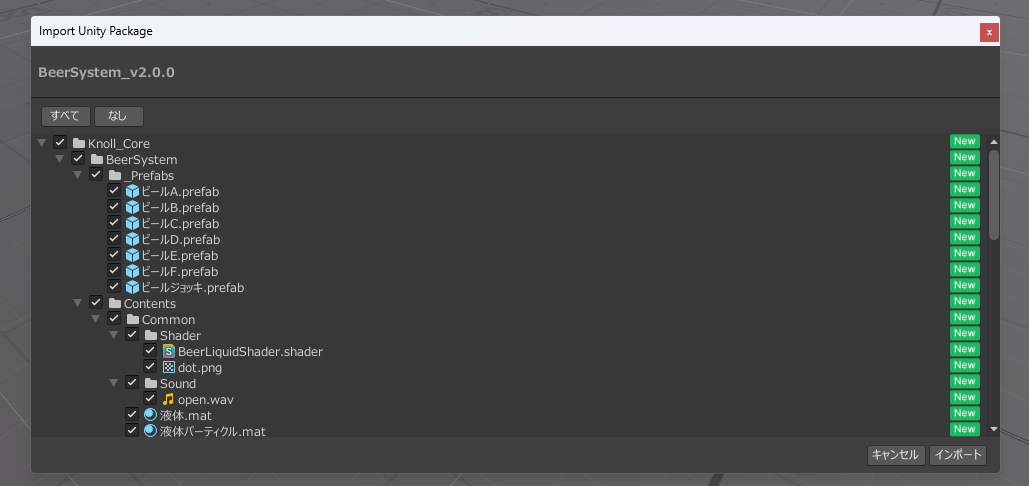
You can also choose Assets > Import Package > Custom Package... from the menu bar, then select the unitypackage.
2. Place the Prefabs
-
In the Project window, open these folders in order:
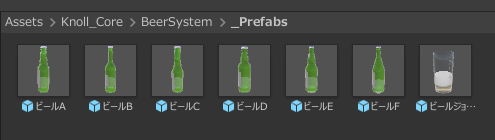
Assets>Knoll_Core>BeerSystem>_Prefabs
-
Confirm the bottle and mug Prefabs in
_Prefabs.- Bottle Prefabs (Beer A–F)
- Mug Prefab (beer mug)
-
Drag the Prefabs you want from the Project window into the Hierarchy.
-
Adjust the Prefab position in the Scene view.
- Use Transform to change position, rotation, and scale as needed.
3. Check that it works
-
Click Play at the top of the Unity Editor.
-
Confirm these behaviors:
- Pour-into-glass bottles: hold the bottle and press Use to open it, then tilt to pour beer. Press Use again to switch to foam
- Pouring into the mug fills it with beer
- Hold the mug and press Use to drink
- Drink-from-bottle bottles: hold the bottle and press Use to open it, then press Use to drink and the beer in the bottle decreases
-
If all of that works, setup is complete.